Transactions Summary
The Transactions Summary report gives you an aggregated view of all financial transactions that occurred within your business account over a selected date range. Rather than listing every individual transaction, it groups them by type and currency, showing you the total count, total amount, total fees charged, and total net amount for each group. This makes it easy to see at a glance how much activity of each kind happened within a given period and what the overall financial impact was.
This report is particularly useful for getting a broad understanding of your account's transaction volume and composition over time, whether you need it for internal reporting, financial reconciliation, or simply to understand how your business is performing across different transaction types.
How to use it
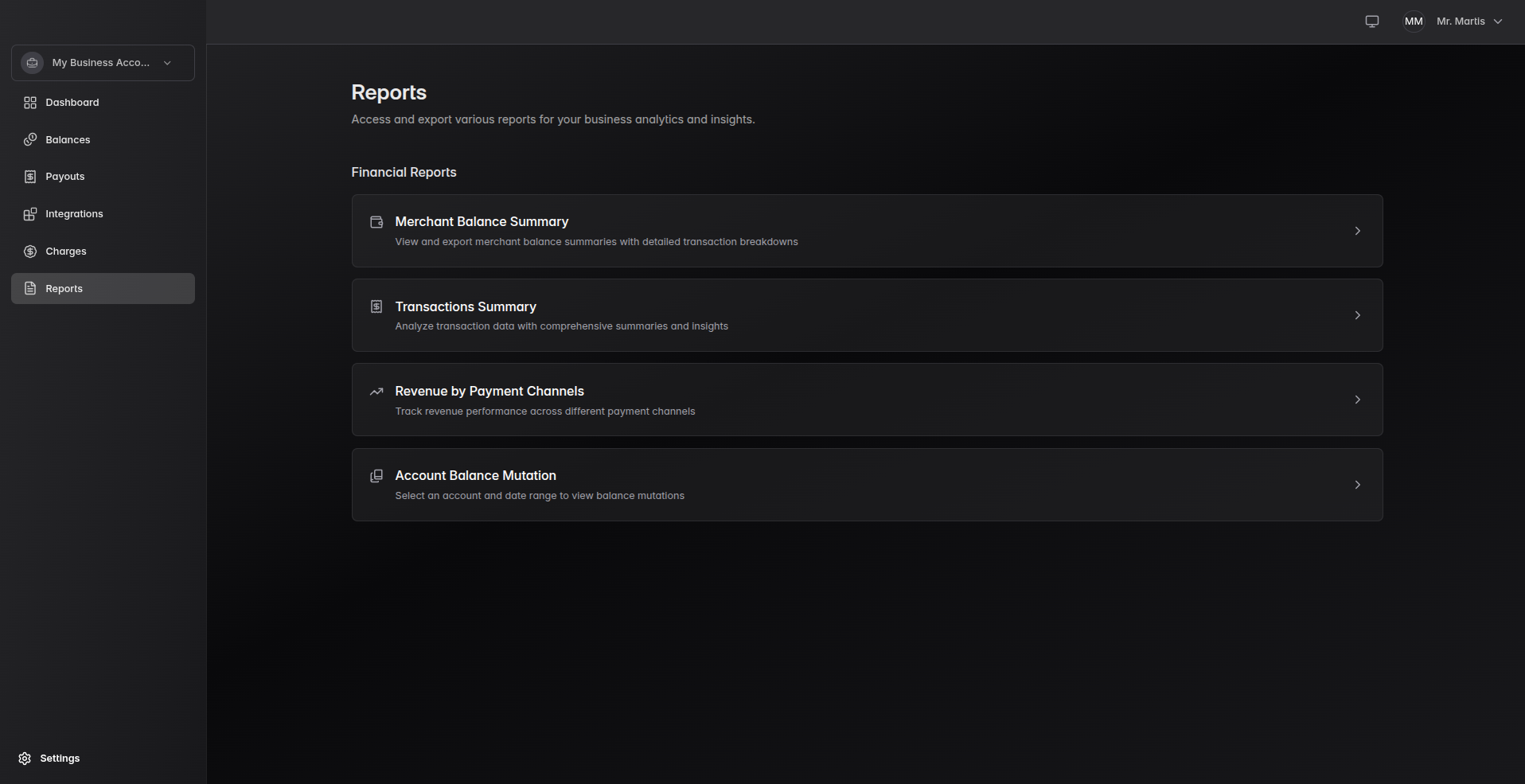
Navigate to the Reports page and select Transactions Summary.
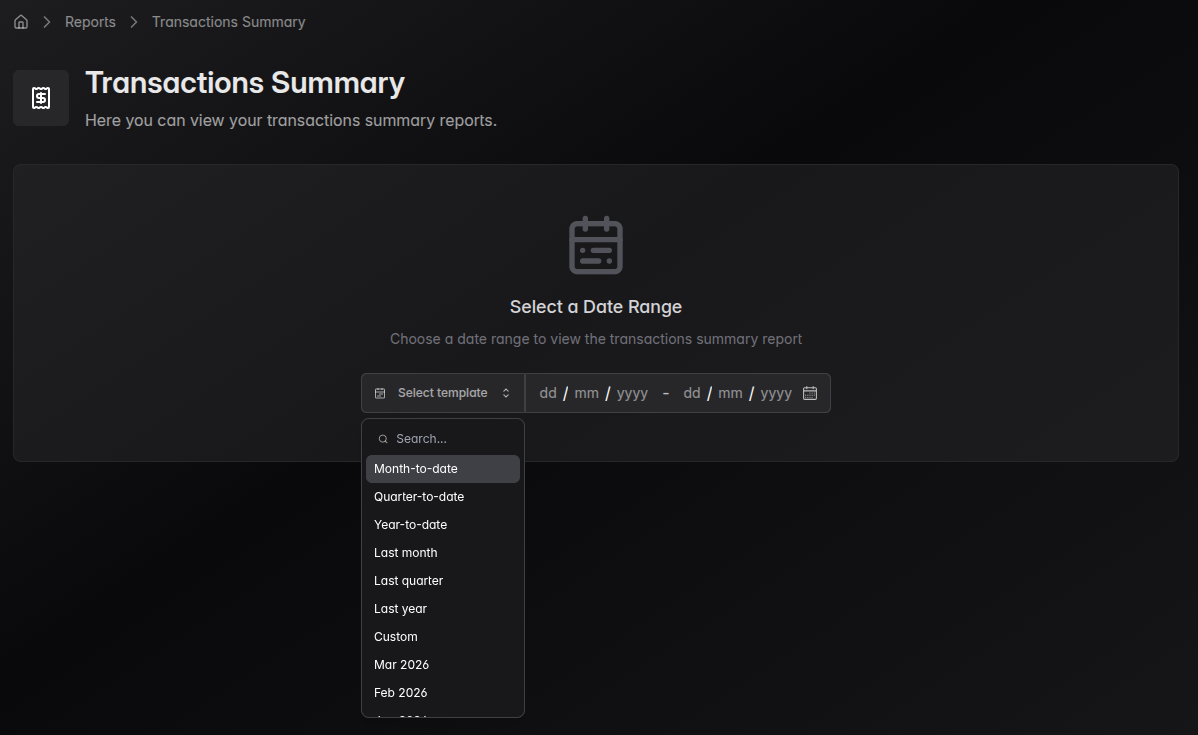
From there, choose a date range by either selecting a preset template or entering a custom start and end date manually using the date picker.
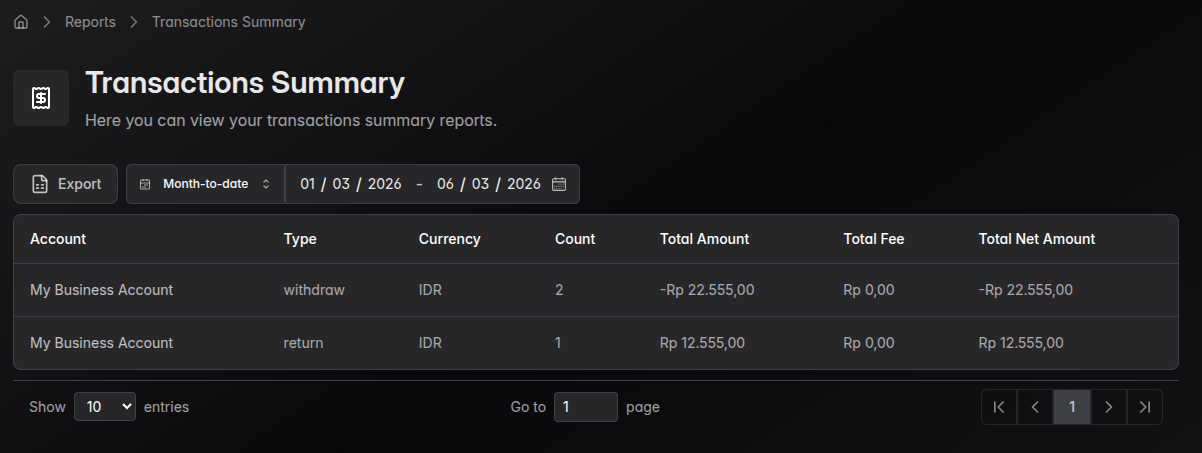
Once a valid date range has been selected, the report will populate automatically and display the results grouped by transaction type and currency.
Columns
The report table contains the following columns:
-
Account
The name of the business account the transactions belong to.
-
Type
The type of transaction. Each transaction type will appear as its own row, grouped separately from other types.
-
Currency
The currency in which the transactions were recorded.
-
Count
The total number of transactions of that type within the selected date range.
-
Total Amount
The sum of all transaction amounts for that type and currency within the selected date range.
-
Total Fee
The total fees charged across all transactions of that type and currency within the selected date range.
-
Total Net Amount
The net amount after fees have been deducted from the total amount. This represents the actual financial impact on your account balance.
Exporting
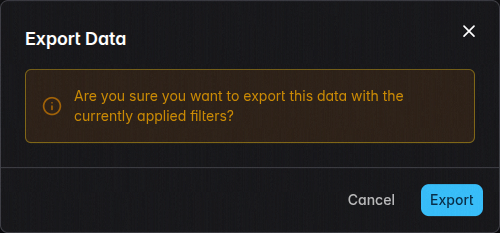
Once the report is generated, you can click Export to download the data. A confirmation modal will appear asking you to confirm that you want to export the data with the currently applied filters. Click Export to confirm and download the report as a CSV file.
This is useful if you need to share the report with your finance team, attach it to an accounting record, or perform further analysis in a spreadsheet tool.