Revenue by Payment Methods
The Revenue by Payment Methods report gives you a breakdown of your incoming revenue grouped by payment method over a selected date range. Instead of looking at your total revenue as a single number, this report lets you see exactly how that revenue is distributed across the different ways your customers are paying, giving you a clearer picture of which payment methods are driving the most volume for your business.
Each payment method your customers paid with, such as QRIS, QRIS ShopeePay, Mandiri Virtual Account or CIMB Niaga Virtual Account, appears as its own row in the report, so you can compare performance across them in detail.
This report is particularly useful for understanding your revenue composition, identifying which payment methods your customers prefer, and making informed decisions about which payment methods to prioritize or expand.
How to use it
Navigate to the Reports page and select Revenue by Payment methods.
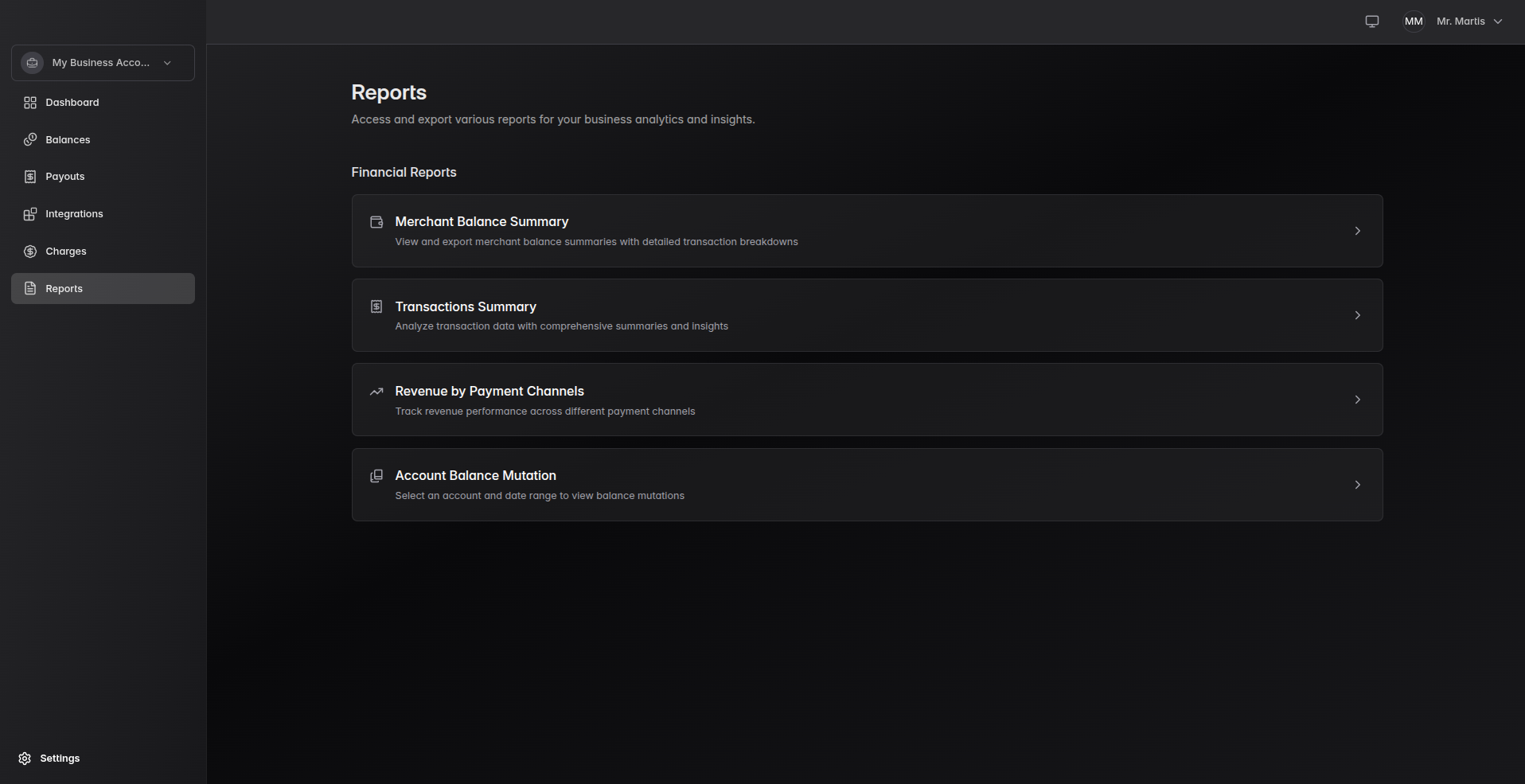
From there, choose a date range by either selecting a preset template or entering a custom start and end date manually using the date picker. The report will populate automatically once a valid date range has been selected.
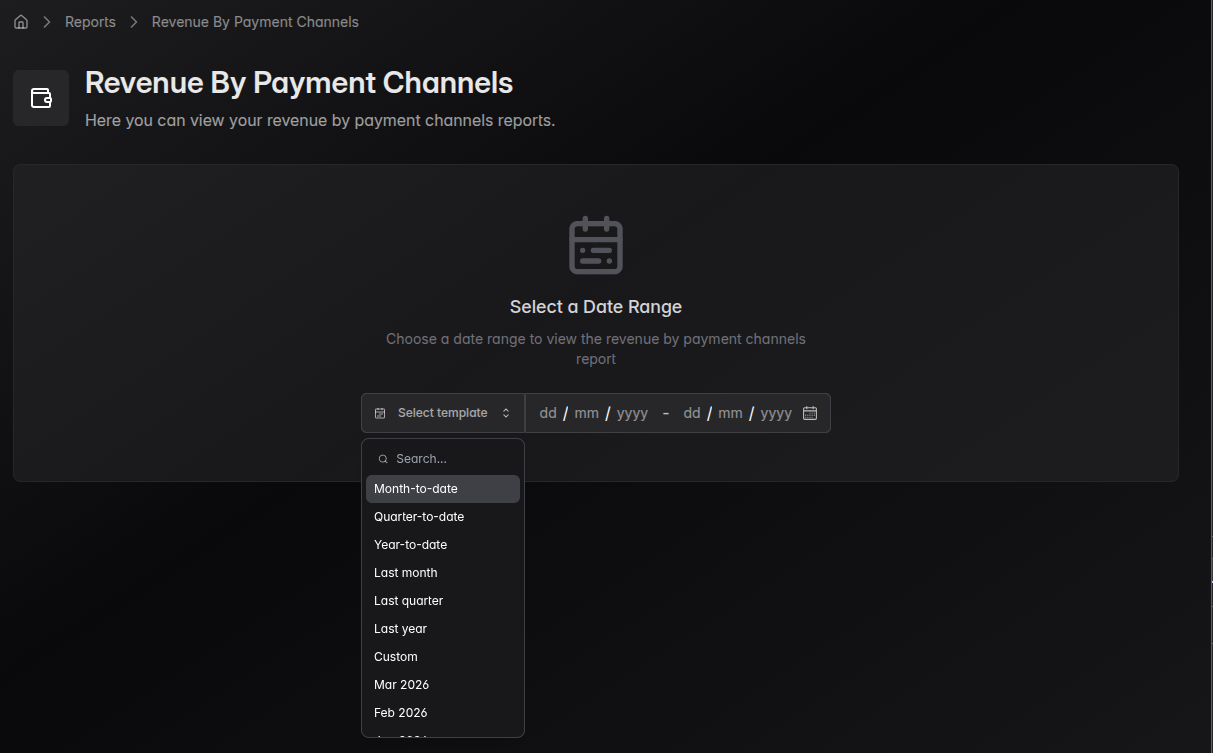
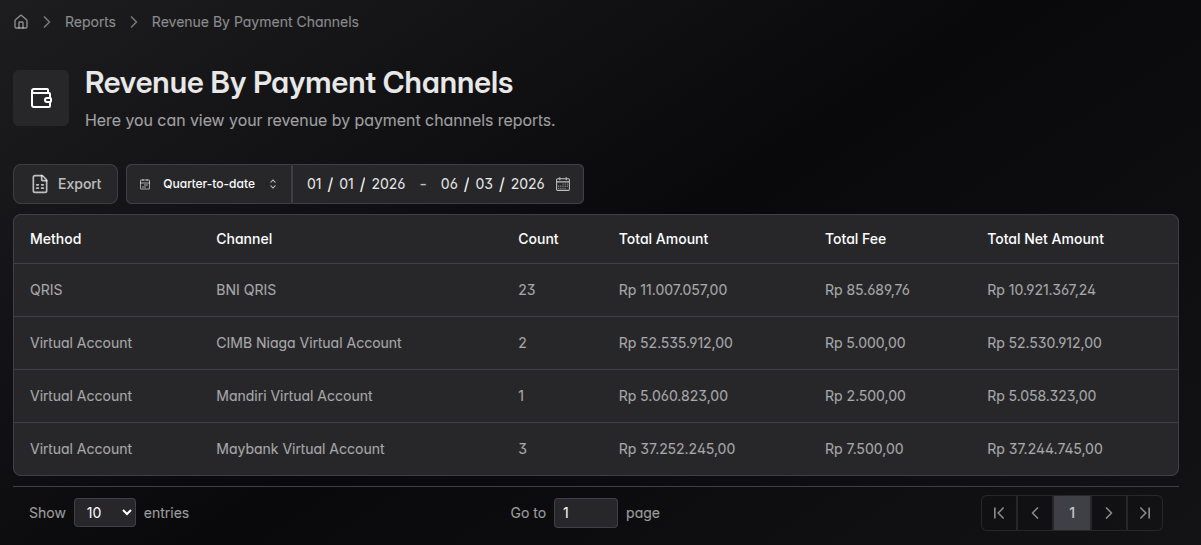
Once a date range is selected, the report will display one row per payment method that had activity within the selected period.
Columns
The report table contains the following columns:
-
Method
The payment method used, such as QRIS or Mandiri Virtual Account.
-
Currency
The currency the payment method charges in.
-
Count
The total number of transactions processed through that method within the selected date range.
-
Total Amount
The sum of all transaction amounts processed through that method within the selected date range.
-
Total Fee
The total fees charged across all transactions for that method within the selected date range.
-
Total Net Amount
The net amount after fees have been deducted from the total amount. This represents the actual revenue your business account received from that method.
Exporting
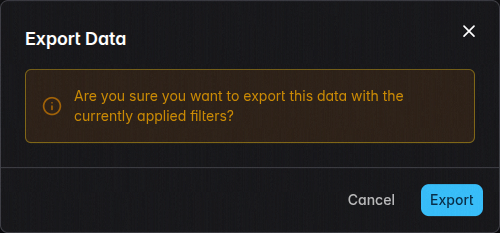
Once the report is generated, you can click Export to download the data. A confirmation modal will appear asking you to confirm that you want to export the data with the currently applied filters. Click Export to confirm and download the report as a CSV file.
This is useful if you need to share the report with your finance team, attach it to an accounting record, or perform further analysis in a spreadsheet tool.