Account Balance Summary
The Account Balance Summary report gives you a high-level view of how your account balances changed over a selected date range. For each currency your business account holds, it shows the starting balance at the beginning of the period and the ending balance at the end of it, making it easy to see the net effect of all financial activity within that time frame at a glance.
Because KingsPay supports multiple currencies, the report breaks down balances on a per-currency basis. This means that if your business account holds balances in IDR, USD, and MYR for example, each currency will appear as its own row in the report, giving you a clear and complete picture of your financial position across all of them.
This report is particularly useful when you need to reconcile your balances, verify that your records match what is reflected in KingsPay, or produce a concise financial summary for accounting, auditing, or reporting purposes. Rather than combing through individual transactions to figure out where your balance stands, the Account Balance Summary gives you that answer directly by showing exactly where your balance started and where it ended within any given period.
How to use it
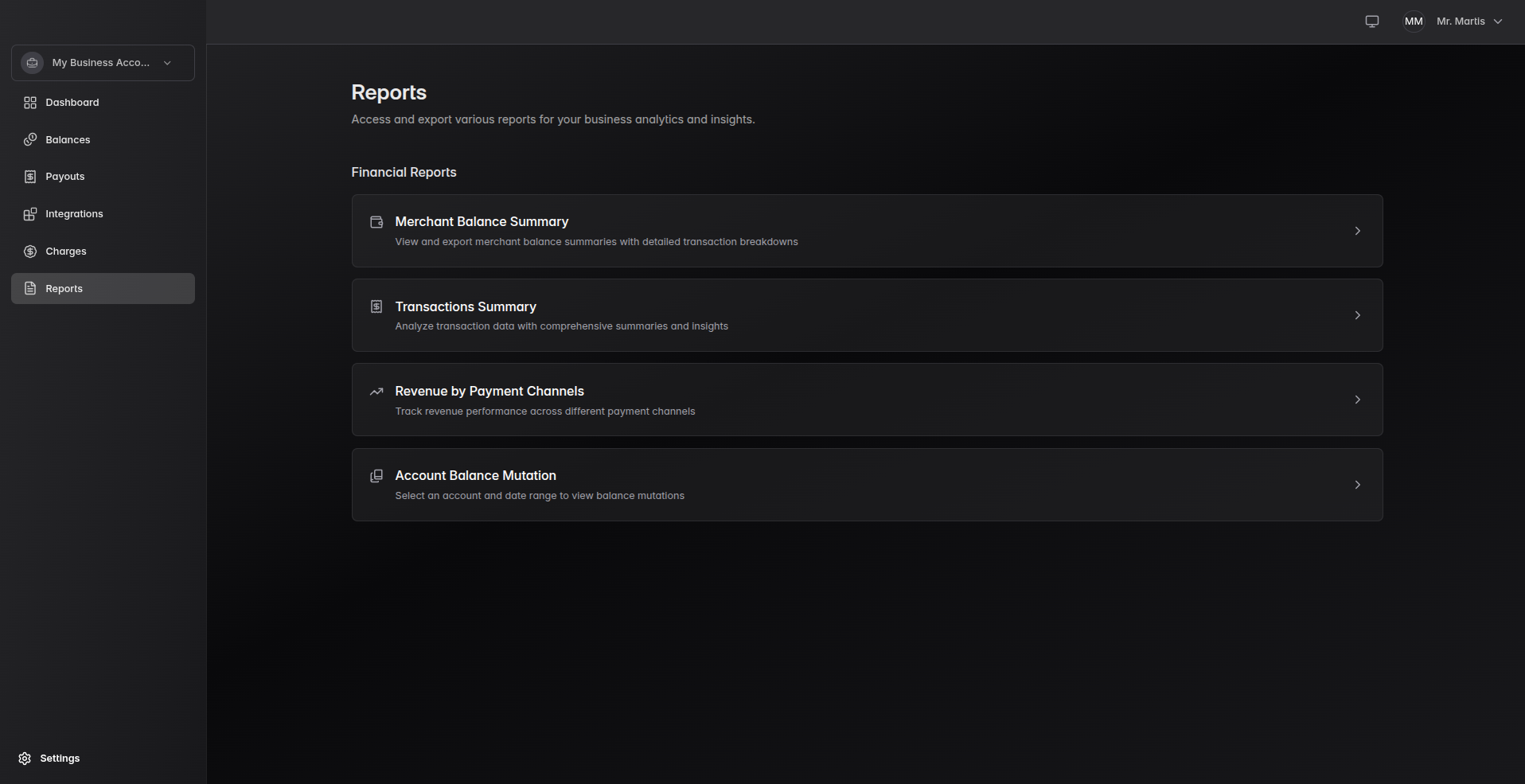
Navigate to the Reports page and select Account Balance Summary.
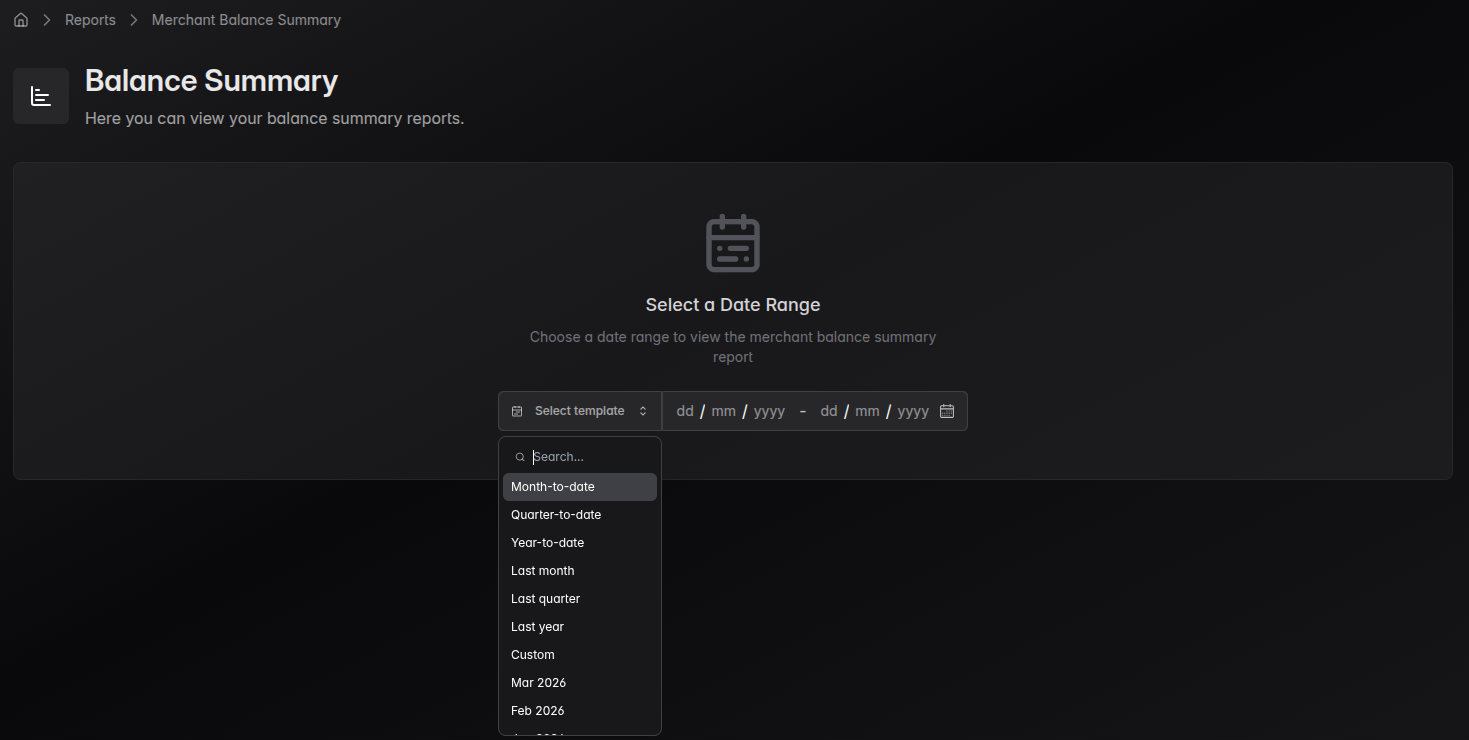
From there, choose a date range by either selecting a preset template or entering a custom start and end date manually using the date picker. The report will populate automatically once a valid date range has been selected, and will display one row per currency per account within the selected period.
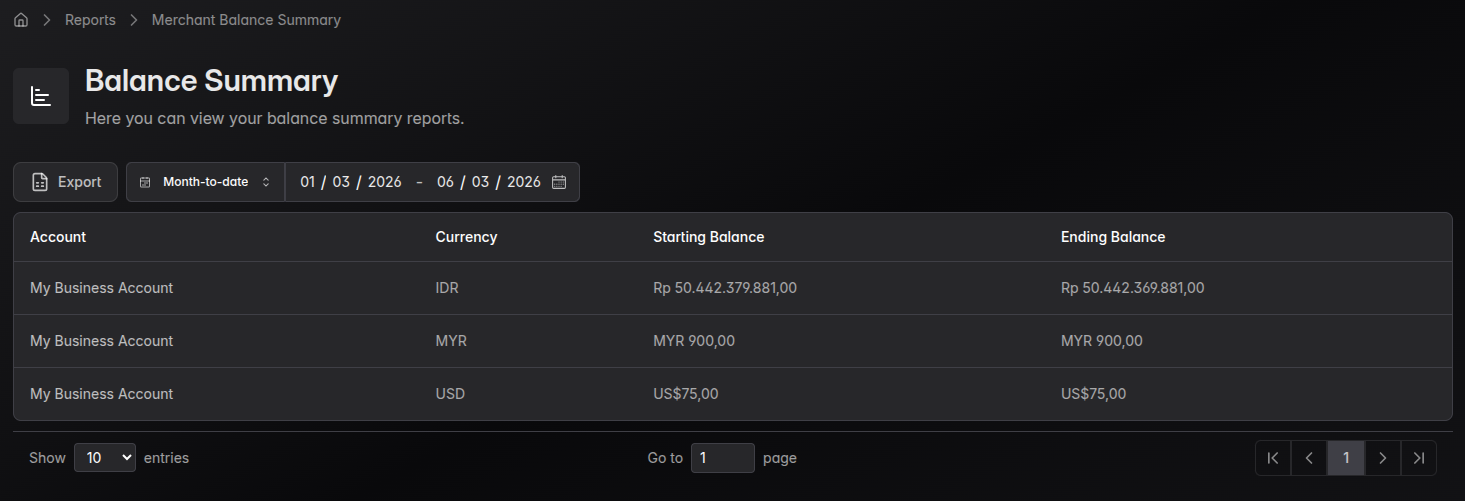
If your business account has activity across multiple currencies, you will see a separate row for each one, allowing you to review each currency's balance movement independently without having to switch between views or filter the data yourself.
Columns
The report table contains the following columns:
-
Account
The name of the business account the balance belongs to.
-
Currency
The currency of the balance being reported. Each currency held by your business account will appear as a separate row.
-
Starting Balance
The balance at the beginning of the selected date range. This reflects the state of your balance at the very start of the period you have chosen.
-
Ending Balance
The balance at the end of the selected date range. This reflects the state of your balance at the close of the period, after all transactions, payouts, charges, and other financial activity have been accounted for.
Exporting
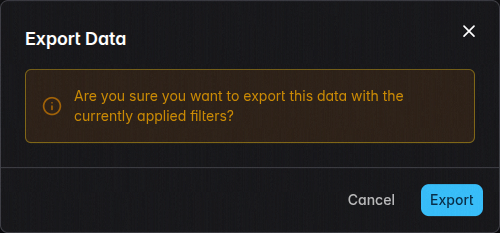
Once the report is generated, you can click Export to download the data. A confirmation modal will appear asking you to confirm that you want to export the data with the currently applied filters. Click Export to confirm and download the report as a CSV file.
This is useful if you need to share the report with your finance team, attach it to an accounting record, or perform further analysis in a spreadsheet tool.