Adding a Bank Account
This page walks you through adding a new bank account to your business account. Before you can make a withdrawal, you must have at least one verified bank account registered. Adding a bank account only takes a moment, but keep in mind that it will need to be verified by the KingsPay team before it can be used.
Navigate to Settings > Bank Accounts and click New bank account in the top right corner.
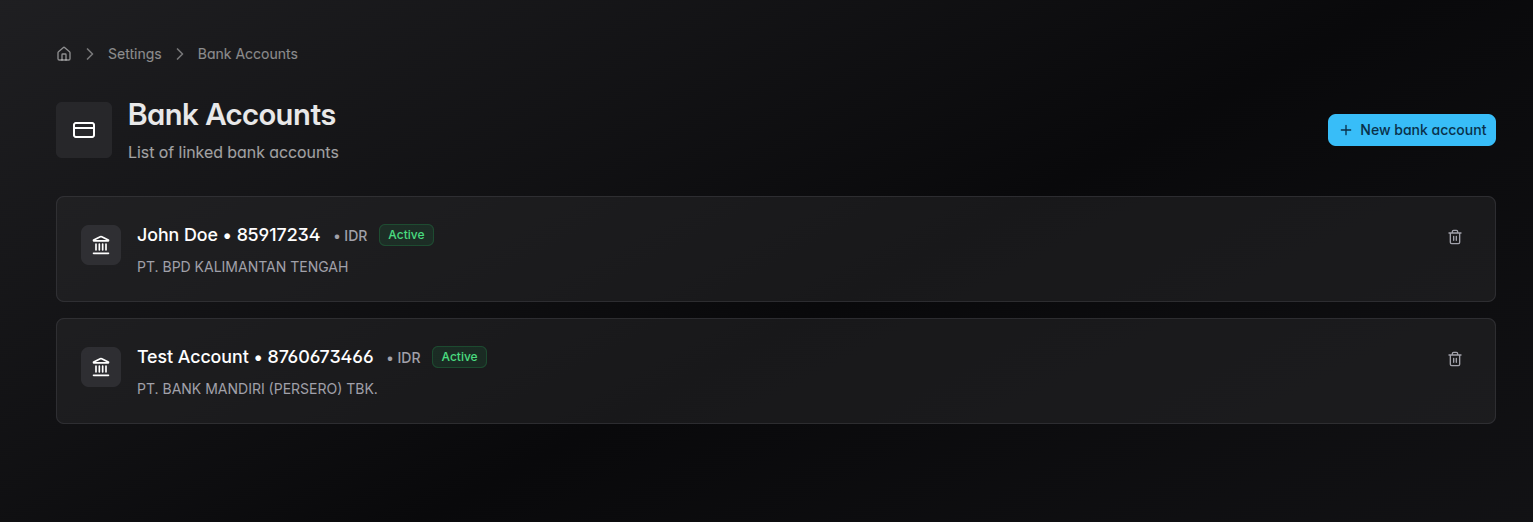
A modal will appear prompting you to fill in the details of the bank account you want to add.
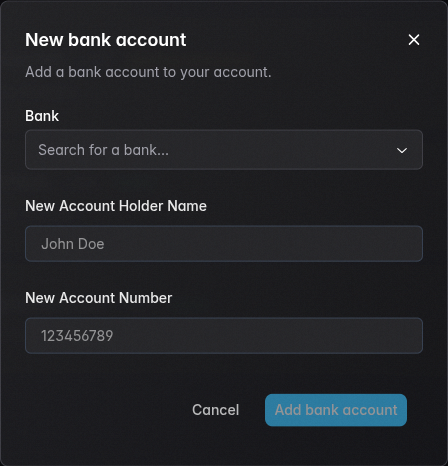
Fill in the following fields:
-
Bank
Search for and select the bank the account belongs to. The currency of the bank account is determined by the bank you select, so make sure you choose the correct bank that matches the currency you intend to withdraw to. You can search by bank name to quickly find the one you are looking for.
-
New Account Holder Name
The full name of the account holder exactly as it is registered with the bank. Make sure this matches your bank records accurately, as discrepancies may cause the verification to fail.
-
New Account Number
The account number of the bank account you want to add. Double check this before submitting to avoid verification issues caused by an incorrect number.
Once all fields are filled in, click Add bank account to submit. The bank account will be added to your list immediately and will appear with an Awaiting Verification status, indicating that the KingsPay team has received your request and will review it shortly.

You will not be able to use the bank account for withdrawals until the verification is complete and its status changes to Active. You will be notified once your bank account has been verified and is ready to use.